
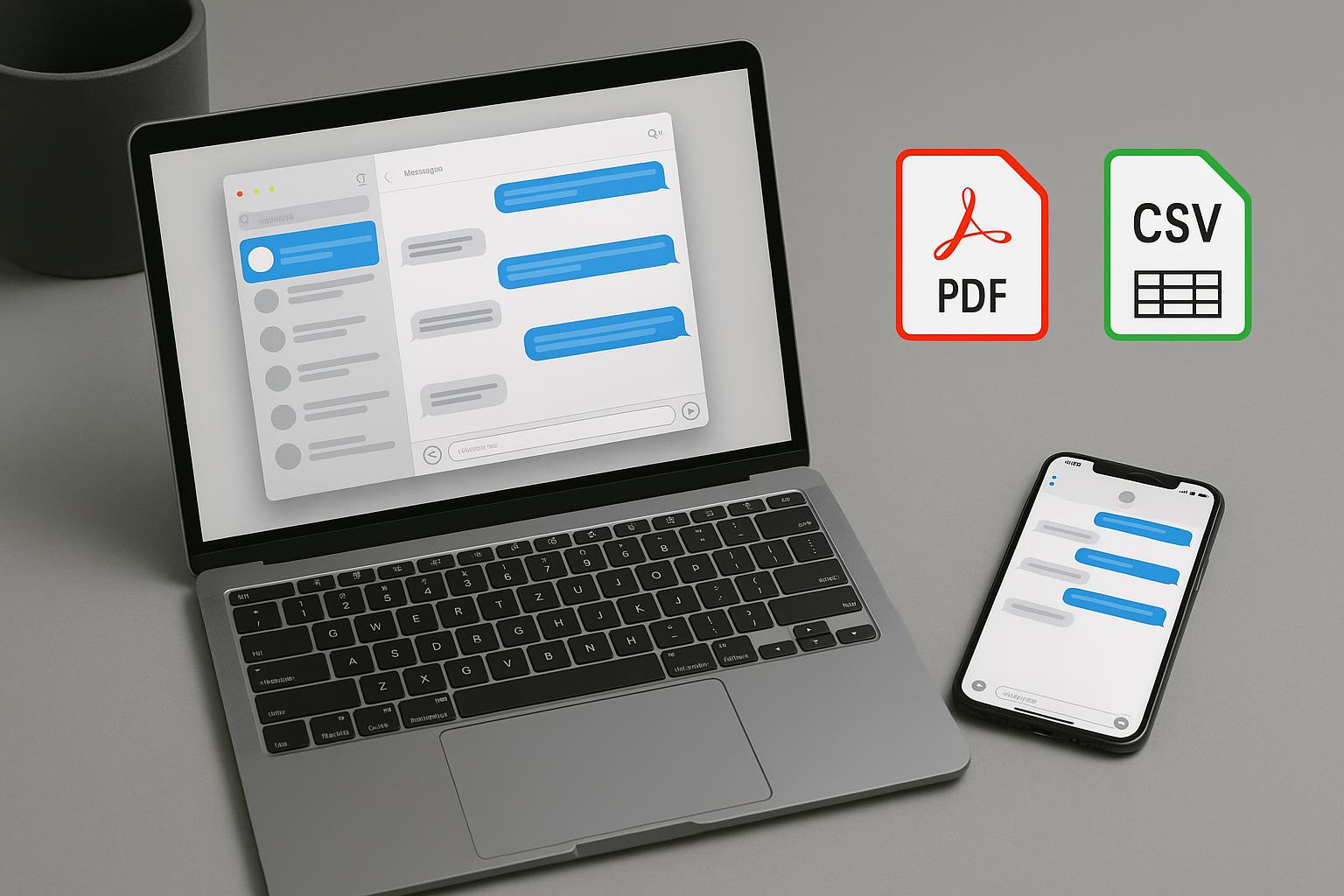
Mac users often rely on the Messages app to keep important conversations synced across their Apple devices. From personal chats and family memories to business discussions and important records, many conversations end up stored on the Mac Messages app. However, macOS does not make it especially simple to export those messages into a readable or shareable format.
For many, the answer is taking endless screenshots or manually copying and pasting text. But there is a better way. Here is how to take control of your message history by saving it locally on your Mac.
Why Keeping a Local Copy of Your Messages Matters
Keeping a local copy of your conversations makes them easier to save, search, and share when needed.
- Professional records: Save business discussions as PDF or CSV files for client folders, projects, or internal records.
- Personal safekeeping: Save important conversations on your Mac without relying on cloud storage.
- Portable files: Store messages in readable formats that remain accessible outside the Messages app.
Messages Export Pro is a new Mac app designed to solve that problem. The app lets users export iMessage and SMS conversations directly from the Mac Messages app to TXT, PDF, or CSV files, without needing to connect an iPhone or create an iPhone backup.
Messages Export Pro is free to download from the Mac App Store. TXT exports and saving attachments are free, while PDF and CSV exports are available through a single one-off $19.99 in-app purchase.
How to Export Your iMessages and SMS using Messages Export Pro
- Download Messages Export Pro from the Mac App Store and open it.
- Select the conversation you want to export.
- Choose your message export format:
- PDF: Best for reading, printing, sharing, or keeping as a record.
- CSV: The go-to for data analysis and spreadsheets.
- TXT: Best for simple text backups.
- Choose the save location for the exported file to your Mac.
Exports created with Messages Export Pro include important message details such as sender information and timestamps. Users can also save message attachments, including photos, videos, audio messages, and files, directly to their Mac.
What If Your Messages Are Not on Your Mac?
Messages Export Pro is designed for conversations that already appear in the Mac Messages app. If you need to export messages directly from an iPhone, or access a wider range of iPhone content, TouchCopy offers a more comprehensive option.
TouchCopy connects to your iPhone from a Mac or Windows PC and can export more than standard SMS and iMessages. It also supports WhatsApp and LINE conversations, as well as photos, videos, contacts, notes, calendars, call logs, and other device content.
For message exports, TouchCopy can save conversations in formats such as PDF, CSV, TXT, and HTML, with support for attachments including images, videos, and audio files.
Conclusion
Don’t wait until you’ve lost a critical conversation to start thinking about backups. By taking just a few minutes to save your important message threads into accessible, standard file formats, you ensure that your history stays backed up, no matter what happens to your devices.
In summary, Messages Export Pro is ideal for exporting conversations already stored on your Mac, while TouchCopy is better suited to users who need to export directly from an iPhone or manage a wider range of device data.